Learning Management System: What It Is and How Schools Use It
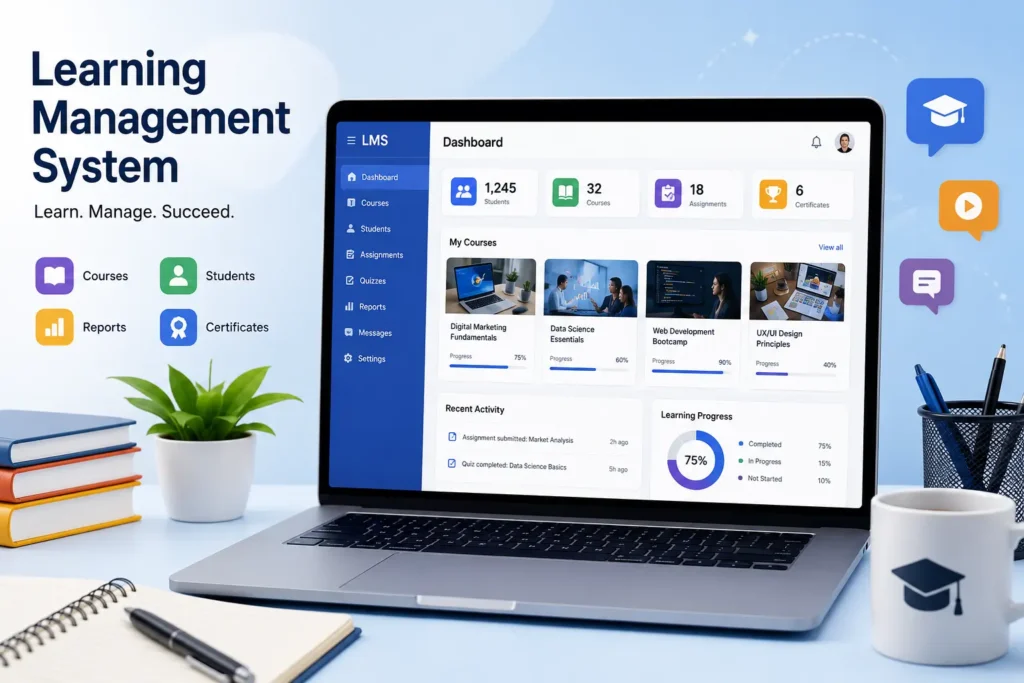
A Learning Management System, also called an LMS, is a digital platform that helps schools keep lessons, assignments, assessments, feedback, communication, and student progress in one place. It works like a digital classroom for teachers and students. An LMS is not the same as a login portal. A portal helps users open tools, while an LMS helps manage learning activities, course content, and class progress.
Have you ever wondered, “Is Clever the learning management system, or is it just how I get to it?”
Many students, parents, and teachers ask this question. Schools use many digital tools today. Some tools help students log in. Some hold grades. Others help teachers share learning materials and assignments.
A Learning Management System is the main place where much of online learning and blended learning can happen. It may hold class lessons, quizzes, feedback, due dates, and student work.
This guide explains the LMS meaning in simple words. You will learn what an LMS does in a school, which learning management system features matter, who uses these platforms, and how an LMS differs from Clever, a Student Information System, and other school tools.
What Is a Learning Management System?
A learning management system is software that helps teachers create, organize, share, and track learning activities. In schools, an LMS can bring lessons, assignments, quizzes, feedback, grades, and communication into one online space.
In simple words, an LMS is a digital classroom. It gives teachers a place to post work. It gives students a place to find work, complete it, and turn it in.
The LMS meaning is not hard to understand. It is a learning platform that helps a school manage teaching and learning online.
For example, a teacher may use an LMS to:
- Share class notes and videos
- Post homework assignments
- Create quizzes and assessments
- Give feedback on student work
- Add scores to a gradebook
- Send updates to students
- Review progress tracking reports
A Learning Management System can support learning in a fully online class. It can also support blended learning, where students learn both in a classroom and online.
Many schools use an LMS every day. Students may not always call it an LMS. They may simply call it “the class page,” “the school portal,” or “where I turn in my work.”
How Does an LMS Work in a School?
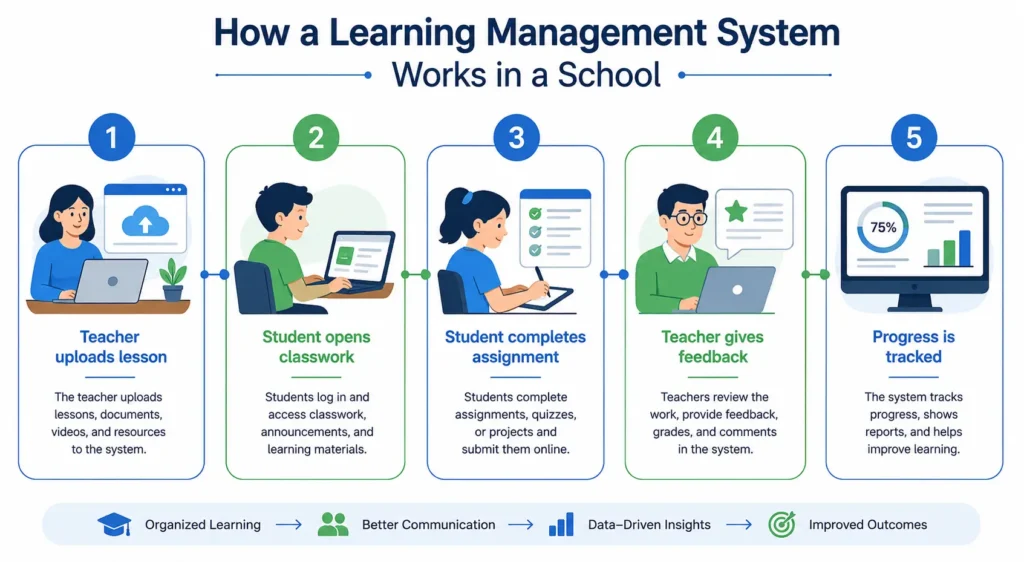
An LMS works by giving teachers and students shared online spaces for classwork. Teachers organize learning materials and class activities. Students use the same system to read lessons, complete assignments, get feedback, and check due dates.
Here is a simple example of how teachers and students use an LMS every day.
1. Teachers set up class learning materials
A teacher can create a class space for math, science, English, or another subject. They may upload course content such as worksheets, slides, reading links, videos, and study guides.
The teacher dashboard often helps teachers see all their classes in one place. It may also show upcoming work, student submissions, and class messages.
2. Students open classwork
Students sign in with their school account. They can open their student dashboard and find the classes they need.
Inside the LMS, students may see:
- Daily learning materials
- Homework assignments
- Project instructions
- Quiz dates
- Class announcements
- Teacher feedback
- Grades or progress reports
This helps students keep schoolwork in one clear place.
3. Students submit assignments
Students can read instructions, complete work, and upload files through the learning platform. Some assignments may be typed online. Others may ask students to upload a photo, document, slide deck, or video.
After a student submits work, the teacher can review it and send feedback. This can make it easier for students to see what they did well and what they need to improve.
4. Teachers check progress
An LMS can help teachers review progress tracking. For example, a teacher may check who opened a lesson, completed an assignment, or needs extra help.
This does not replace good teaching. However, it can help teachers stay organized and notice students who may need support.
If your school uses Clever to open learning tools, you can learn how to access your school learning tools with your school account.
What Features Does a Learning Management System Include?
Most learning management system features help teachers organize classwork and help students complete it. The exact tools can be different from one school district to another.
Here are common features found in many LMS platforms.
| LMS Feature | What It Helps Users Do |
| Course or class space | Keeps each class organized in its own online area |
| Course content | Stores lessons, readings, links, videos, and other learning materials |
| Assignments | Lets teachers post work and students turn it in |
| Quizzes | Helps teachers check what students understand |
| Assessments | Supports tests, projects, writing tasks, and other learning checks |
| Gradebook | Keeps grades and scores in one place |
| Feedback tools | Lets teachers comment on student work |
| Messaging | Supports teacher and student communication |
| Calendar | Shows due dates, events, and class schedules |
| Reporting | Helps teachers review student activity and progress |
| Parent communication tools | May help families see school updates, depending on school settings |
Course content and learning materials
Course content can include almost anything students need for class. A teacher may share a reading passage, a worksheet, a video lesson, a study guide, or a link to another learning app.
This can save time because students know where to look for class materials.
Assignments, quizzes, and assessments
Assignments help students practice what they learn. Quizzes and assessments help teachers understand whether students need more help.
A teacher can set a due date. The student can submit work through the LMS. The teacher can then review it and give feedback.
Gradebook and feedback
The gradebook can help students see scores and completed work. Feedback can be written comments, suggestions, or notes from a teacher.
Students should remember that each school may use its LMS in a different way. Some teachers may show grades online. Others may use the LMS mainly for learning materials and assignments.
Reporting and progress tracking
Reporting tools can show class activity. A teacher may see which students submitted work, opened a lesson, or completed a quiz.
Progress tracking should be used with care. A student clicking a lesson does not always mean they understood it. Teachers still need to talk with students, review work, and use many ways to check learning.
LMS, SIS, and Clever: What Is the Difference?
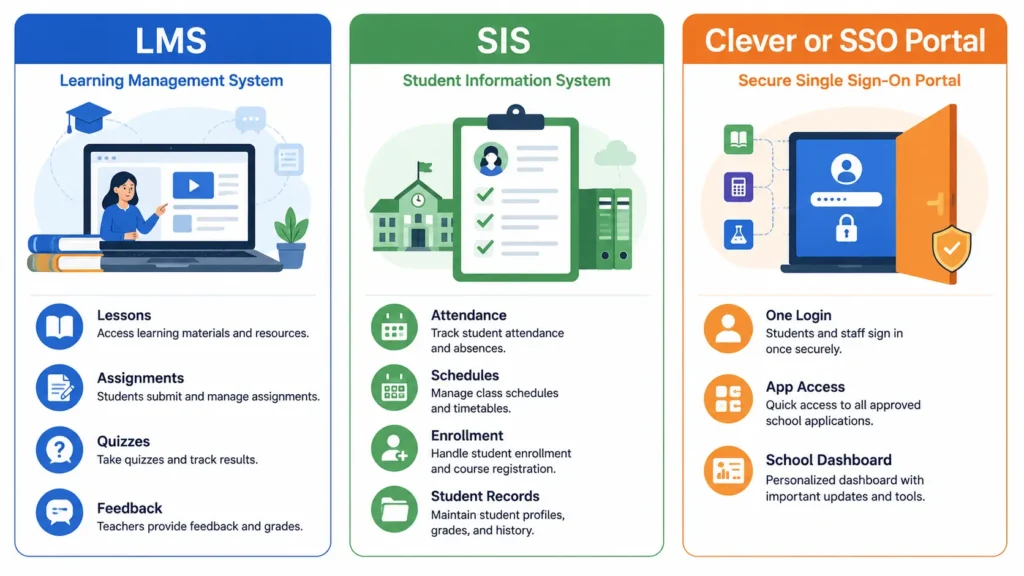
An LMS manages teaching and learning activities. A Student Information System, also called an SIS, stores official school records. Clever is often used as a Single Sign-On, or SSO, portal that helps users reach connected school tools.
A school may use all three systems at the same time.
This is why many people get confused. These tools can work together, but they do different jobs.
| Tool | Main Job | Simple Example |
| Learning Management System | Manages lessons, assignments, quizzes, feedback, and learning progress | A student opens a class page and submits homework |
| Student Information System | Stores official student records and school data | A school manages enrollment, schedules, and attendance |
| Clever or another SSO portal | Helps users log in once and open connected apps | A student signs in and clicks an app from a dashboard |
What is an LMS?
An LMS is the place where teaching and learning happen online. It may hold class posts, course content, assignments, assessments, feedback, and reports.
Think of it as the school’s digital classroom.
Common learning management system examples include Canvas, Google Classroom, Schoology, Moodle, and Blackboard Learn. Each platform works differently, and schools choose tools based on their needs.
What is an SIS?
A Student Information System stores important school records. This may include student names, enrollment details, schedules, attendance, report cards, and other official data.
The LMS vs SIS difference is simple:
- An LMS helps manage learning.
- An SIS helps manage school records.
A school may connect its LMS and SIS so teachers and students can see the right classes and information.
What is Clever?
Clever is commonly used as a school login portal. It can help students and teachers use one school account to open connected education tools. CleverPortalUS describes Clever as a secure, all-in-one login system that gives users quick access to educational tools.
So, is Clever a learning management system?
Usually, Clever is better understood as a Single Sign-On portal. It is like the digital front door. An LMS is more like the digital classroom.
For example, a student may sign in to Clever Portal first. Then the student may open Canvas, Google Classroom, an assessment app, or another school learning tool.
Some students also use Clever, Google, or Canvas login options to reach a school learning platform. The right option depends on the school district and the tools chosen by the school.
Who Uses a Learning Management System?
An LMS for schools can help many people. Each user has a different reason for using it.
Students
Students use an LMS to find learning materials, read instructions, complete assignments, take quizzes, and view teacher feedback.
A student dashboard may show classes, due dates, messages, and recent work.
Teachers
Teachers use the teacher dashboard to organize class learning. They can post lessons, create assignments, review student work, and give feedback.
An LMS can help teachers keep class information in one place. This is useful when teaching many students or several class periods.
Parents and families
Some schools give parents limited access to learning updates. Parent communication tools may show announcements, calendars, missing work, or class messages.
Not every school gives parents the same access. Schools set their own rules for what families can see.
School administrators
School leaders may use reports to understand how learning tools are being used. They may also help set rules for training, data privacy, accessibility, and support.
Support staff
School IT staff and technology teams may help students and teachers sign in. They may also connect the LMS with an SIS, a Single Sign-On system, or other learning apps.
What Are Common LMS Examples?
There are many learning management system examples for schools. A school district may use one main LMS or a mix of connected learning tools.
Here are a few common names:
- Canvas
- Google Classroom
- Schoology
- Moodle
- Blackboard Learn
These are examples, not rankings. The best choice for one school may not be the best choice for another school.
A school may choose a learning platform based on:
- Student age groups
- Teacher training needs
- Accessibility support
- Data privacy rules
- Parent communication needs
- SIS connections
- Single sign-on options
- Available support
- School district policies
For example, a school may use Canvas for classwork while students use Clever to sign in. You can read more about Canvas login methods if your school gives you access through Clever, Google, or another school account.
Why Do Schools Use an LMS?
Schools use an LMS to make learning more organized. It gives teachers and students one clear place for class materials and activities.
A good LMS can support online learning and blended learning. It can help students keep track of schoolwork even when they are away from the classroom.
| Possible Benefit | Important Reminder |
| Keeps learning materials organized | Teachers still need time to set up class content clearly |
| Makes assignments easier to find | Students still need help building good work habits |
| Supports teacher feedback | Feedback works best when students read and use it |
| Helps with progress tracking | Reports should not be the only way to judge learning |
| Supports parent communication | Schools should set clear privacy rules |
| Makes remote learning easier | Students still need reliable device and internet access |
A Learning Management System can also help during weather closures, school events, illness, or homework time. Students may still be able to find class materials when they cannot be in the classroom.
However, technology is only one part of learning. A good LMS works best when teachers, students, parents, and school staff understand how to use it.
What Should Schools Consider Before Choosing an LMS?
Schools should not choose an LMS only because it has many features. The system should be easy to use, safe, accessible, and helpful for real classroom needs.
Learning needs
First, schools should think about what teachers and students need most.
Questions may include:
- Can teachers share learning materials easily?
- Can students complete assignments without confusion?
- Does the LMS support quizzes and assessments?
- Can teachers give clear feedback?
- Does it work for both online learning and blended learning?
- Can parents receive useful updates when needed?
Technical fit
An LMS should work well with other school tools. This may include a Student Information System, school email, and a Single Sign-On system.
A school should also check whether the LMS works on different devices. Students may use Chromebooks, tablets, laptops, or phones.
Schools should plan for training too. A powerful system can still feel confusing if teachers, students, and families do not know how to use it.
Privacy and accessibility
Data privacy is very important in education. Schools should understand what student data is collected, where it is stored, who can see it, and how it is protected.
FERPA is a U.S. federal law that gives parents rights related to their children’s education records. When a student becomes an eligible student, those rights transfer to the student in certain situations. The U.S. Department of Education also provides guidance to help schools and districts protect student information.studentprivacy.
Accessibility matters too. Students with different needs should be able to use the learning platform. The W3C Web Content Accessibility Guidelines, known as WCAG, provide recommendations for making web content more accessible to people with disabilities. WCAG 2.2 added new success criteria that address barriers related to visual, mobility, hearing, and cognitive disabilities.
A school should ask:
- Can students use keyboard controls?
- Are videos captioned?
- Can text be read by screen readers?
- Is the design easy to understand?
- Can students complete tasks without too many steps?
- Does the system support different learning needs?
How Can Students Access Their School LMS?
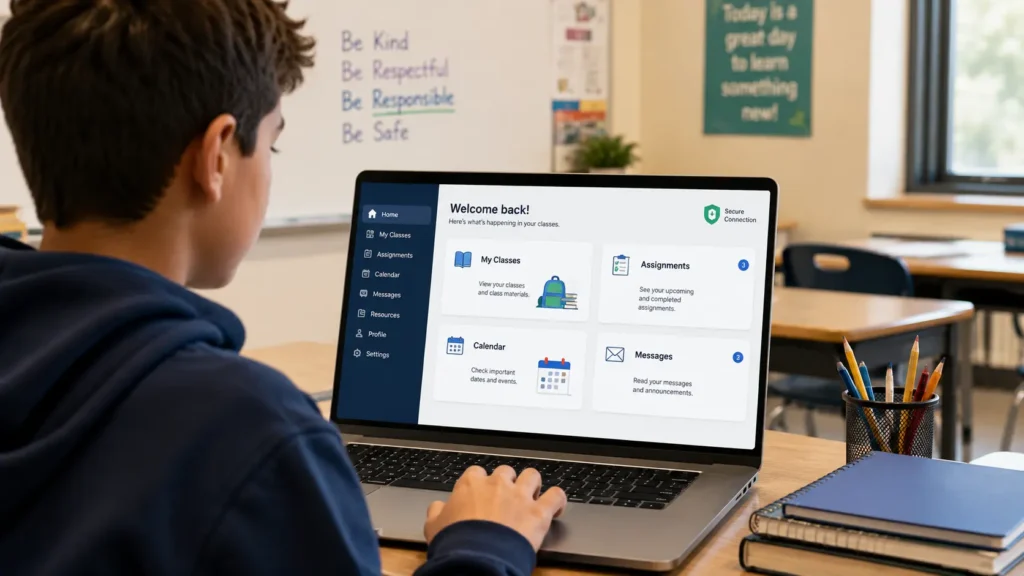
Students can access an LMS in different ways. The right method depends on the school district.
A school may ask students to use:
- A direct school website link
- A district learning portal
- A Google school account
- A Microsoft school account
- Clever or another Single Sign-On portal
- A school-issued username and password
Here are simple steps to follow.
1. Use your school account
Always use the account given by your school. Do not use a personal email unless your teacher or school tells you to do so.
2. Start at the school-approved login page
Your teacher, school website, or district technology office should tell you where to sign in. This could be an LMS website, school portal, or Clever dashboard.
3. Check the correct class
After you log in, make sure you are in the right class. Look at the teacher name, subject, and class period.
4. Ask for help if you cannot log in
If you cannot access your school learning platform, try these steps:
- Check that your username is correct
- Check your password carefully
- Make sure you are using the right school login page
- Try signing out and back in
- Ask your teacher for the class link
- Contact the school IT office if the problem continues
If your district uses Clever, follow this guide to log in to Clever as a student. Clever login guides can help you understand common school account access steps.
Final Thoughts
A Learning Management System helps schools bring teaching and learning together online. It can support lessons, assignments, assessments, gradebook tools, feedback, reporting, and progress tracking.
The most important thing to remember is this: an LMS is where learning happens. A Student Information System holds official school records. Clever and other Single Sign-On tools help students reach connected apps.